Analytics
What Analytics Does
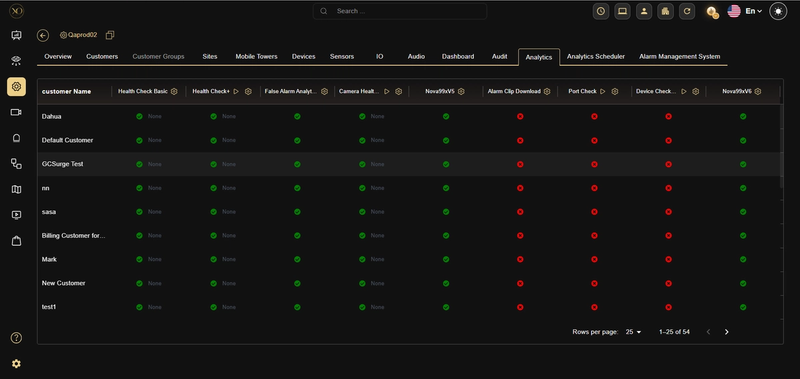
The Analytics tab provides a matrix view across all customers, where each row represents a customer and each column represents a configured analytic type. Administrators can see the full subscription status at a glance, activate or deactivate any analytic in bulk, and trigger immediate checks on demand.
The tab is accessible at multiple hierarchy levels — Service Provider, Customer, Site, and Device — allowing bulk control at every layer of the platform.
Why It Matters
Managing analytics manually across hundreds of customers and thousands of cameras is time-consuming and error-prone. Without a centralized control layer, administrators are forced to configure each analytic one entity at a time with no visibility into what is active.
The Analytics tab fixes this by reducing configuration effort, improving visibility, and giving administrators full control over what runs, when, and for whom — without having to touch individual cameras.
How It Works
Each analytic column in the matrix has two controls in its header: Subscribe all and Run Once.
Clicking the Subscribe all icon opens the Update Analytics dialog. The administrator selects Subscribe or Unsubscribe, optionally applies a time range filter — available options include None, Daily (12 hrs- 0600),Daily (12 hrs- 0930), Daily (12 hrs- 1200) , Weekly ((Monday)—1100) Monthly ((1st Day) — 0000), and Once a day at 23:00 — and chooses whether to overwrite existing per-camera configurations.
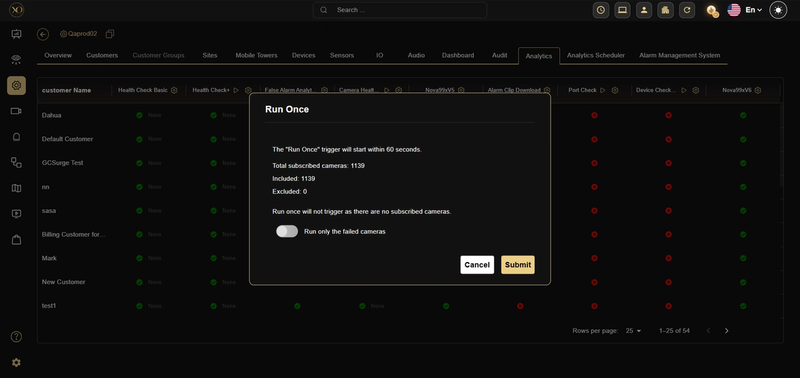
Clicking the **Run Once **button opens the Run Once dialog. This triggers an immediate one-time execution of that analytic outside of any configured schedule. The system displays how many cameras are subscribed, included, and excluded before confirming. The trigger starts within 60 seconds. If no cameras are subscribed, the dialog will display a warning and the job will not trigger.
Note: The Run Once button is not available on all analytic types. Run Once is enabled only for analytics that support on-demand execution.
A green indicator means active subscriptions exist. A green indicator showing "None" means subscribed with no time range restriction. A red indicator means no cameras are subscribed. Hovering over any indicator displays its status label — "Enabled" for active subscriptions and "Disabled" for inactive ones.
Key Capabilities
- Multi-level bulk control — Activate or deactivate analytics at the Service Provider, Customer, Site, or Device level in a single action.
- Subscription matrix — View the full activation status of every analytic type across all customers in one screen.
- Scheduling — Set analytics to run on a defined schedule using the Analytics Scheduler. Schedule options are pulled from the database and shown in a dropdown.
- Run Once — Trigger an immediate on-demand execution of supported analytics outside of their schedule. Starts within 60 seconds.
- Overwrite control — Choose whether bulk changes overwrite individually configured cameras or apply only to unconfigured ones.
- Hierarchy propagation — Changes applied at a higher level automatically cascade down to all linked sub-entities.
- Failed camera retry — The Run Once dialog includes an option to run only on previously failed cameras, reducing unnecessary load.
Analytic Types
| Analytic | What It Does |
|---|---|
| Health Check Basic | Standard connectivity and stream availability check. Runs twice daily by default. |
| Health Check+ | Adds image quality validation — detects black screens, obstruction, and degraded signal. |
| Health Check Advanced | Configurable heartbeat checks between 15 minutes and 8 hours with network drop detection. |
| Health Check Advanced V2 | On-demand diagnostics with AI-powered obstruction detection. Supports Run Once by default. |
| False Alarm Analytics | Analyzes alarm history to detect recurring false alarm patterns per camera. |
| False Alarm Analytics Beta | Next-generation false alarm detection with enhanced classification accuracy. |
| Nova99xV5 / V6 | Verifies which cameras are running the latest NOVA99x AI model version. |
| Alarm Clip Download | Retrieves and stores alarm clips centrally for offline review and evidence retention. |
| Camera Health | Checks focus, lens condition, and frame quality beyond standard connectivity. |
| Port Check | Verifies required network ports are reachable for each subscribed camera. |
| Device Check | Broader device diagnostic including firmware version and communication health. |
Real-World Use Cases
- A service provider activates Health Check Basic for all customers in one action instead of configuring each site manually.
- An administrator triggers Run Once after a network outage to immediately verify which cameras recovered.
- A customer with 500 cameras is subscribed to False Alarm Analytics overnight using a time range filter, so the job runs only during off-peak hours.
- Health Check Advanced V2 is enabled at the Service Provider level and automatically applies to all customers, sites, devices, and sensors beneath it.
- An administrator uses the "run only failed cameras" option to retry checks on cameras that failed the previous run without re-running the entire fleet.
Best Practices
- Start with Health Check Basic across all customers before enabling more intensive analytics — it provides baseline visibility with minimal load.
- Use time range filters when subscribing large camera fleets to avoid running heavy analytics during peak monitoring hours.
- Enable the Overwrite toggle only when you intentionally want to reset individually configured cameras — leave it off to preserve custom per-camera settings.
- Use Run Once for troubleshooting and verification after changes, not as a substitute for scheduled analytics.
- Review the subscribed / included / excluded counts in the Run Once dialog before confirming — if the subscribed count is 0 the job will not trigger.ot trigger.
Additional Details
- Permissions — Access to the Analytics tab requires the appropriate role at the Service Provider level. Users without this privilege will not see the tab.
- Access path — Configuration Page → Service Provider Level → Analytics Tab.
- Scheduler — The Analytics Scheduler tab (separate from the Analytics tab) provides additional control over timing and frequency per analytic type.
- Propagation behavior — Changes cascade downward through the hierarchy. Disabling an analytic at the Customer level disables it for all Sites, Devices, and Sensors under that customer.
- Run Once availability — The Run Once button appears only on analytics that support on-demand execution. Not all analytic types have this option.