using ZenMode for Operator
What ZenMode for Operator Does
ZenMode is an operator-focused mode inside Video Search that compiles alarm clips from a selected customer or site into a single, continuous review session. Instead of opening alarms one by one, the operator sees all events back-to-back — real and false alarms together — and can classify, investigate, and act on each one without losing context or switching screens.
Why It Matters
During a busy shift, an operator can face dozens or hundreds of alarms across multiple sites. Reviewing each one individually wastes time and causes fatigue. ZenMode solves this by grouping all events for a selected scope into a streamlined viewing session — letting one operator cover more ground, faster, without missing anything important.
How It Works
Before You Begin
- You are logged in with the Operator role.
- ZenMode is activated in the Marketplace (contact your administrator if not available).
- You have at least one customer or site with recorded alarm events.
- If using Multi-Monitor, your workstation has multiple physical screens set up.
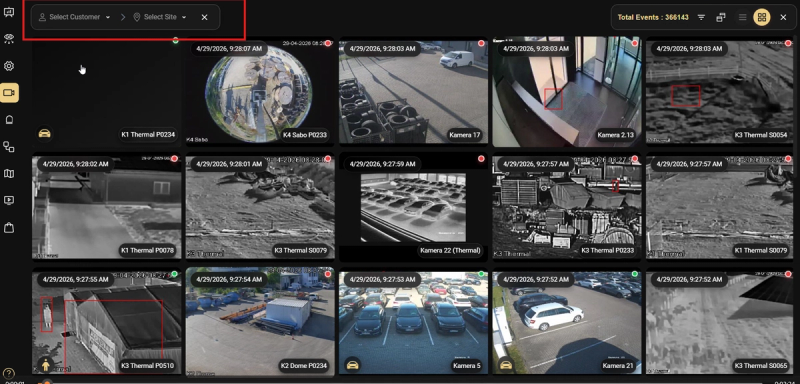
Step 1: Open Video Search and Select customer and site
- Click Video Search from the left navigation menu.
- Select a Customer and Site. Once both are selected, the ZenMode button appears.
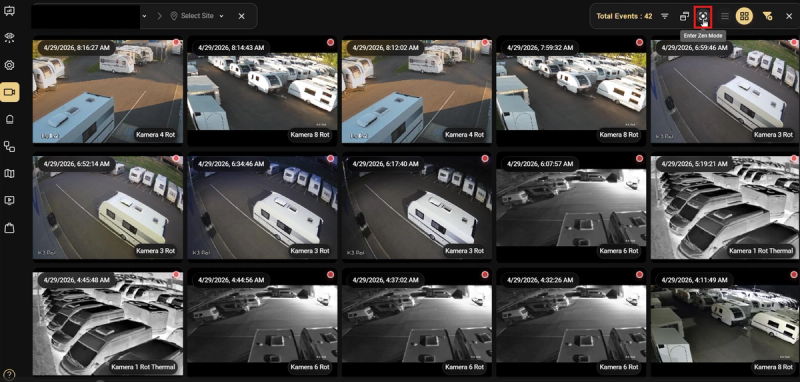
Step 2: Launch ZenMode
- click the ZenMode button in the top-right toolbar of Video Search.
- ZenMode compiles all alarm events for the selected scope into a combined review session.
- The total number of events is displayed so you know how many clips are in the session before you begin.
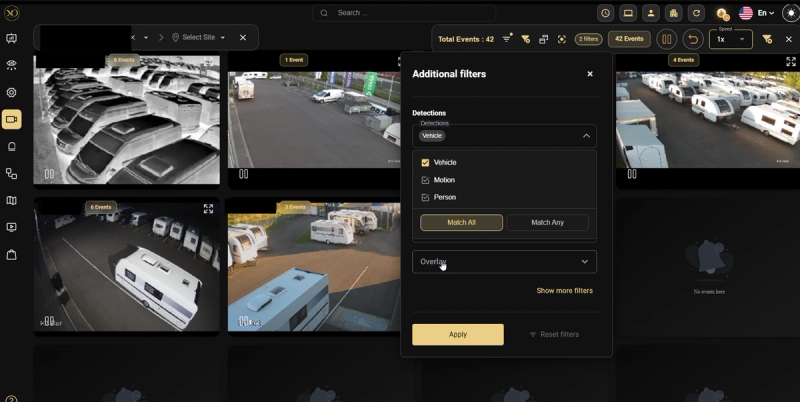
Step 3: Filter Your Events
At the top of ZenMode, use the filters to narrow down what you review:
- Alarm Type — Filter by real alarms, false alarms, or all
- Detection — Filter by Person, Vehicle, or other detected types
- Date & Time — Set the time window to review
- Overlay — Toggle detection bounding boxes on or off
Step 4: Select and Review a Clip
- Click on any clip to open it. As the clip plays, the following information is displayed at the top of the player:
- Customer name
- Site name
- Device name (NVR)
- Sensor name (camera)
- Timestamp — updates in real time as the clip plays, showing exactly when each moment occurred.
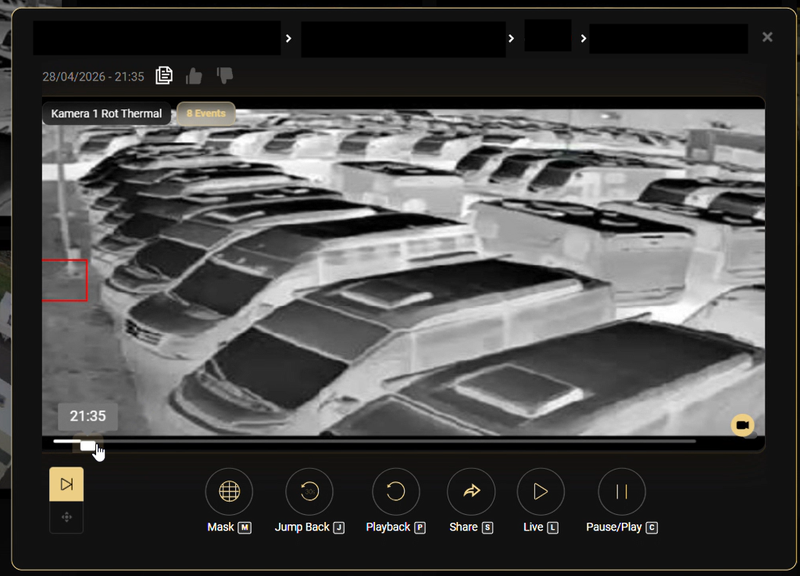
The following controls are available:
| Control | Purpose |
|---|---|
| Play / Pause | Start or pause the clip |
| Playback | Navigate through the clip |
| Jump Back | Rewind to review a moment again |
| Mask | Apply a mask to a detection zone directly from the player |
| Share | Share the clip |
| Speed Controller | Adjust playback speed — faster to skim, slower to inspect │ |
Step 5: Use ZenMode with Multi-Monitor
Multi-Monitor lets you view alarms in Video Search and live footage in Video Viewer at the same time. Enable it in both before starting your session.
- Turn on Multi-Monitor in both Video Search and Video Viewer.
- In Video Search, select an alarm — it will be outlined in yellow.
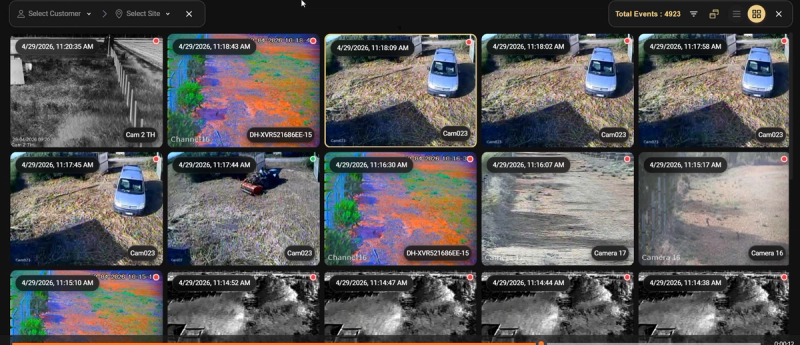
- Open the Video Viewer tab — the selected alarm appears there automatically.
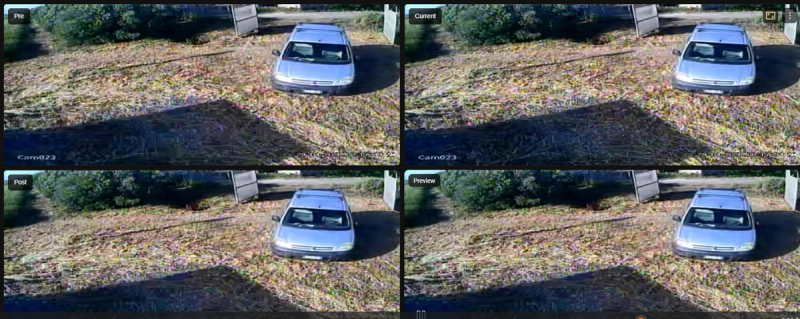
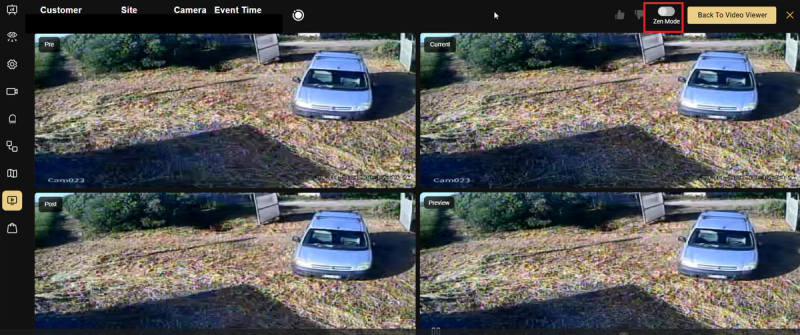
- You can turn on ZenMode directly from Video Viewer.
Real-World Use Cases
- High-volume shift — A site generates 80 alarms overnight. Instead of opening each one individually, the operator launches ZenMode filtered to that site and reviews all 80 clips in a single session, classifying each as real or false without switching screens.
- Pattern spotting — An operator notices the same sensor keeps triggering. Watching clips back-to-back in ZenMode makes the pattern obvious — it's always the same corner at the same time. A mask is applied and the false alarms stop.
- Shift handover — Before handing over, an operator uses ZenMode to quickly walk the incoming operator through the key events from the past few hours, using the speed controller to skip through low-priority clips.
- Multi-site review — An operator filters by customer (rather than a single site) to get a cross-site view of all events for that customer in one ZenMode session.
Best Practices
- Always set your Customer and Site filters before launching ZenMode — a focused scope gives more useful results than reviewing all events at once.
- Use the Detection filter to separate person detections from vehicle detections and review each type in its own session.
- Use the Speed Controller to move faster through low-confidence clips and slow down only when something looks worth investigating.
- Enable Multi-Monitor before starting ZenMode to get the full benefit of simultaneous live view, map, and alarm review.
- Use Mask directly from ZenMode when you spot a recurring false alarm area — no need to leave the session.
- Check the event count before starting so you can plan how long the session will take.