Analytics Scheduler
What Analytics Scheduler Does
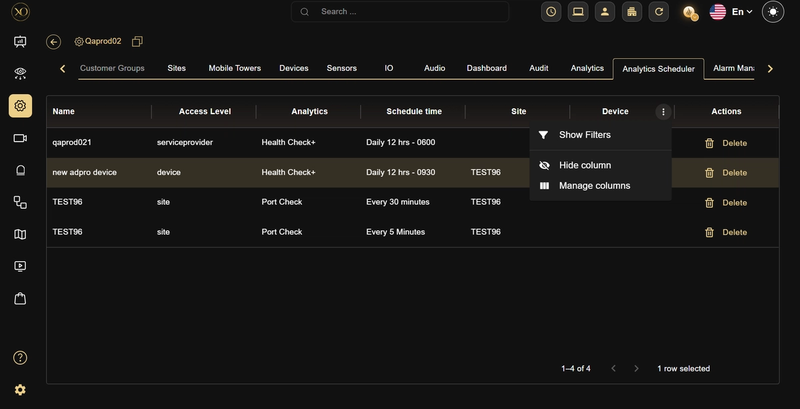
The Analytics Scheduler tab displays all configured analytics schedules in a table view. Each row represents one scheduled analytics job and shows the name, access level, analytics type, schedule time, site, and device associated with it.
The tab appears next to the Analytics tab in the navigation bar and is subject to the same permissions.
Why It Matters
The Analytics tab lets you subscribe cameras to analytics — but it does not show you what schedules are already running or whether duplicates exist. The Analytics Scheduler fills that gap by giving administrators full visibility into every active schedule across the hierarchy in a single table.
Without this view, duplicate schedulers can accumulate silently — running the same analytics job multiple times at the same level, wasting processing resources and making it harder to manage configurations at scale.
How It Works
The table displays the following columns for each scheduled job:
- Name — the entity the scheduler is assigned to (customer, site, or device name)
- Access Level — the hierarchy level of the scheduler:
serviceprovider,site, ordevice - Analytics — the analytic type being scheduled (e.g. Health Check+, Port Check)
- Schedule time — how often the job runs (e.g. Daily 12 hrs - 0600, Every 30 minutes, Every 5 Minutes)
- Site — the site associated with the scheduler, if applicable
- Device — the device associated with the scheduler, if applicable
- Actions — available actions for each row
Each column header includes a menu with three options: Show Filters to filter the table by that column, Hide column to remove it from view, and Manage columns to control which columns are displayed.
Key Capabilities
- Full visibility — View all active schedulers across the entire hierarchy in one table.
- Access level filtering — Each row shows its access level (service provider, site, device), making it easy to identify where each scheduler was created.
- Duplicate detection — The table lists all schedulers including duplicates, allowing administrators to identify and remove redundant jobs manually.
- Column controls — Each column header includes a menu to show filters, hide the column, or manage which columns are visible.
- Delete — Remove any scheduler directly from the table. This unsubscribes the associated cameras from that analytic.
Real-World Use Cases
- An administrator notices two Port Check schedulers running on the same site at different intervals (Every 30 minutes and Every 5 Minutes) and deletes the redundant one.
- A service provider reviews all active Health Check+ schedules across customers and removes outdated entries from decommissioned devices.
- An administrator uses the table to confirm which devices have active schedulers before making bulk changes in the Analytics tab.
Best Practices
- Regularly review the Analytics Scheduler table to identify and remove duplicate schedulers — the same analytic running multiple times on the same entity wastes processing resources.
- Before subscribing cameras to a new schedule in the Analytics tab, check the Scheduler table to confirm no existing schedule is already configured for that level.
- Use the Access Level column to understand which level a scheduler was created at — this helps avoid conflicts between parent and child level schedules.
- Use Show Filters on the Analytics or Schedule time columns to quickly narrow down entries when managing large numbers of schedulers.
Additional Details
- Permissions — The Analytics Scheduler tab shares the same permissions as the Analytics tab. It appears only if the Analytics permission is enabled for the user at that level. If permissions are disabled, neither tab is displayed.
- Access path — Configuration Page → Service Provider Level → Analytics Scheduler tab.
- Hierarchy visibility — At the Service Provider level, the table shows all schedulers across the entire hierarchy. At lower levels (Customer, Site, Device), the table shows only schedulers within that level.
- Deleting vs unsubscribing — Deleting a scheduler from this tab produces the same result as unsubscribing from the Analytics tab.
- Row-level actions — The only available row-level action is Delete.