Roles & Permissions
Understanding RBAC in GCXONE
GCXONE uses role-based access control (RBAC) to determine exactly what each user can see and do. Every user must be assigned a role — without one, they land on a blocked screen immediately after login. Roles combine three things: the modules they can access, the actions they can perform within each module, and which customers and sites they can operate on.
**️ WARNING — Set up roles before inviting users: **A user invited without a role assigned lands on a blocked screen the moment they log in and stays blocked until an admin manually assigns them a role. Design your role structure, create the roles, then invite users.
The Role Management Screen
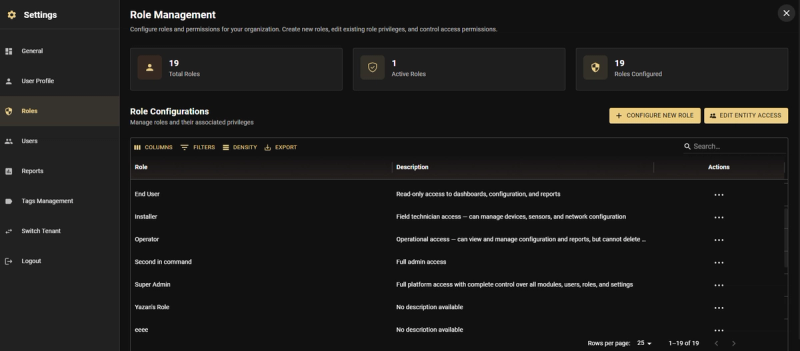
Navigate to Settings → Roles. The Role Management screen lists every role in the tenant with user counts and actions.
Creating a Custom Role
Navigate to Settings → Roles → Configure New Role.
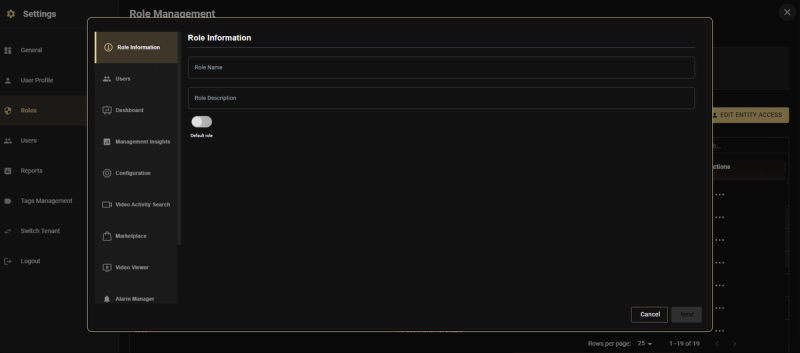
Step 1 — Role Information
Enter the role Name and Description. Toggle Default Role on if every newly invited user should receive this role automatically.
Name roles specifically — "NL Operator – Securitas" is more useful in audit logs than "Operator 2".
Step 2 — Module Permissions
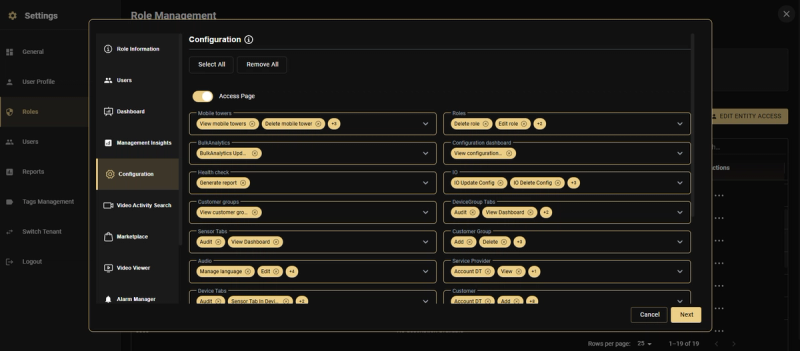
Work through each platform module in the left panel. Grant or remove specific capabilities per module — Dashboard, Configuration, Video Activity Search, Marketplace, Alarm Manager, Talos, and more.
Step 3 — Entity Access
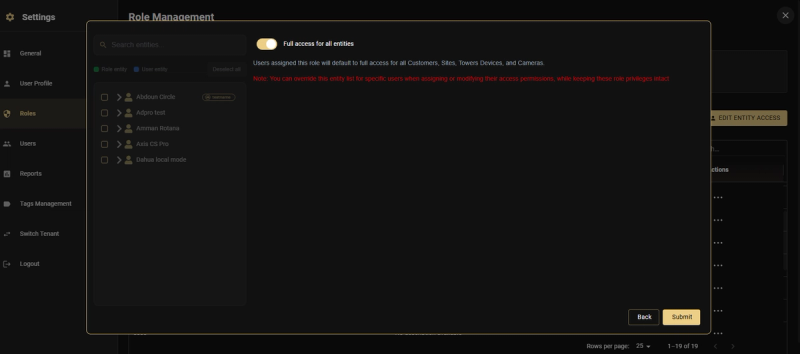
Set which customers, sites, and devices this role can operate on. Enable Include Children on any parent to auto-include all sub-entities — including future additions.
Entity Access Modes
Full Access
Role sees every customer and site in the tenant. Use only for internal admin accounts.
Selected Entities
Assign specific customers and sites. Enable Include Children to auto-include any sub-entities added in future.
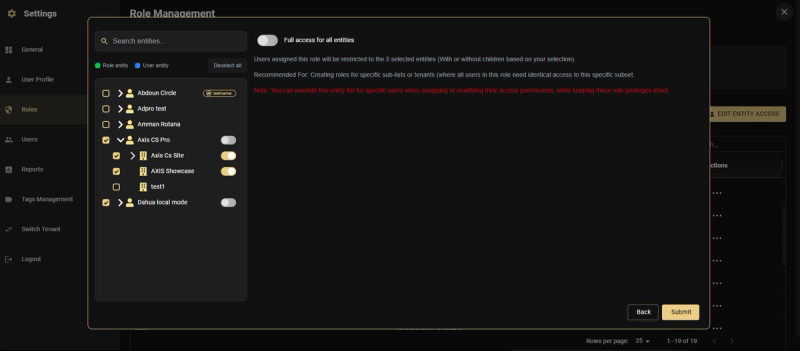
Override Mode
** IMPORTANT — Override Mode: **Acts as a complete replacement. Setting an Override to "Site Beta" entirely revokes access to any previously-held "Site Alpha". Use for strict geographic confinement.
Merge Mode
** NOTE — Merge Mode: **Acts additively. Role grants "Site Alpha" + Merge "Site Beta" = both sites accessible. Ideal for temporary cross-coverage when operators aid a different locale.
Role Configuration Reference
- Super Admin — All modules. Entity: Full Access.
- Admin — Dashboard, Config, Insights, Reports, Marketplace. Entity: Full or Selected.
- Operator — Dashboard, Alarm Manager, Video Viewer, Map. Entity: Selected Entities.
- Installer — Configuration (Devices), Video Viewer (Live). Entity: Per-site via Override.
- End User — Dashboard, Video Viewer (Live only). Entity: Selected Sites.
- Field Technician — Video Viewer, Alarm Manager (Arm/Disarm), Map. Entity: Per-technician Override.
Per-User Entity Access Override
Customize entity access for an individual user without creating a separate role.
- Navigate to Settings → Users → [User] → Edit Entity Access.
- Select Override or Merge mode.
- Add or remove specific customers, sites, or devices.
- Save — the override applies immediately.
Post-Migration Role Recovery
User Sees Access Denied on a Module They Had Before
- Open their role → Module Permissions → verify the capability was not removed during the role edit.
- Check Audit Log → filter by user and date.
User Cannot See a Recently Added Site
- Check if their role uses Selected Entities without Include Children.
- Either enable Include Children on the parent customer, or manually add the new site to the role.
User Has Access to Sites They Should Not
- Check for active Merge overrides on the user.
- Navigate to Settings → Users → Edit Entity Access.
- Remove the unwanted Merge entries.