
Genie AI Assistant
On this page
What Genie AI Assistant Does
Genie is your built-in AI assistant inside GCXONE. Instead of jumping between screens to find what you need, you just ask - and Genie gets it done.
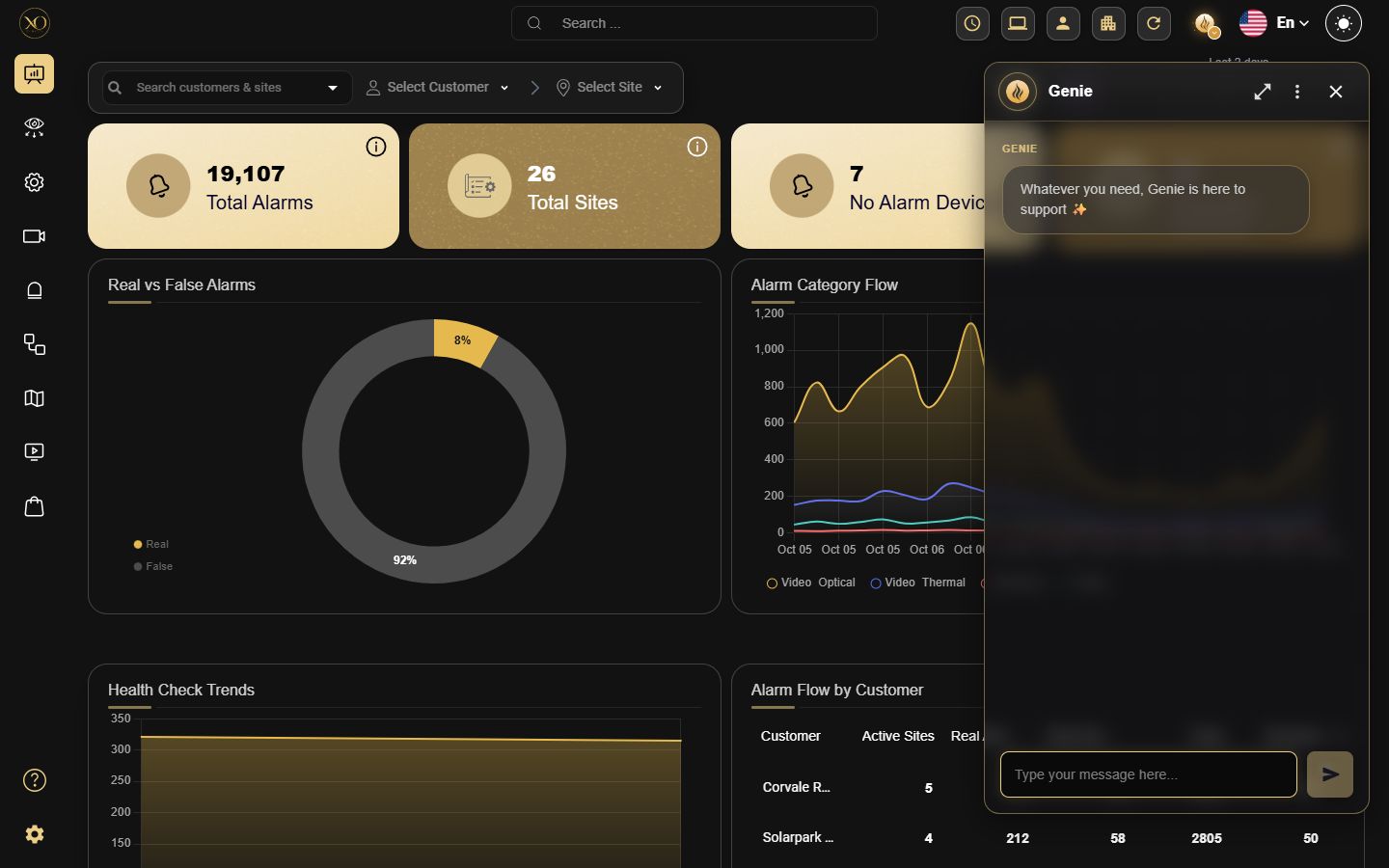
It sits as a floating panel on your dashboard, always there when you need it.
Why It Matters
In fast-paced operations, every second counts. Hunting through multiple screens for an alarm summary or a ticket update breaks your focus and slows your team down. Genie cuts through that - you ask a question, you get an answer, right where you are.
How It Works
Click the Genie icon in the top-right toolbar to open the assistant panel. Genie greets you, and on pages with common questions it also shows a Suggested topics list — ready-made questions for that screen. Click one, or just type your own question in plain language; there's no special command format to learn.
Genie pulls the relevant data or triggers the relevant action straight into the panel, so you never have to leave the screen you're on. For longer conversations, use the expand control in the panel header to enlarge the chat window, and collapse it back to the compact view when you're done.

Key Capabilities
You don't need a specific format or command - just ask Genie in plain language. It can help with:
- Alarms & System Insights — Summaries and breakdowns of alarms, cameras, and system data (for example, "How many alarms did we receive today?").
- Ticket Management — Open a ticket, check status, reply to an existing ticket, or close one by number.
- VPN Requests — Submit and manage VPN-related requests.
- Device Setup and Troubleshooting — Step-by-step guidance on device configuration and connectivity issues.
- Adding Devices — Start the device-creation flow directly from the chat.
Beyond this, Genie also helps you make faster operational decisions by putting all of this data and these actions within immediate reach.
Add Devices via Genie
You can add devices directly through Genie. Start by selecting the device type. Genie prepares the setup and asks for approval before proceeding. Once approved, the device is created and the standard configuration form opens so you can complete connection details like IP, credentials, and ports.
You stay in control the whole time. Review, edit, approve, or reject before anything is added.


Ticket Management
Manage tickets directly through Genie without leaving the chat.

- Reply to tickets by drafting a message and approving it before sending. Genie shows the full action details so you can review before submission.

- Close tickets through guided prompts. You can select a recent ticket, choose from suggestions, or enter a specific ticket number.

- All actions require confirmation, giving you full control before anything is applied.
OpenVPN Requests via Genie
You can submit and manage OpenVPN requests directly through Genie. Create a request by providing key details like user email, ticket title, device IP, and routing model. Genie prepares the request and presents it for review.
All requests require approval before submission. You can review, edit, or reject before sending, ensuring accuracy and control.

Updated UI & Expandable Chat Window
The Genie assistant has been refreshed with a cleaner look and a more flexible chat experience:
- Updated UI — New branding, refined message bubbles, and a polished input field for a more consistent feel across GCXONE.
- Expandable chat window — Use the expand control in the header to enlarge the Genie panel for longer conversations and better readability.
- Collapse back to the compact view when done.
Benefits by Role
Genie adapts to how each role works day to day:
- Operator — Saves roughly 2 hours per shift by automating routine tasks and speeding up alarm identification.
- Admin — Cuts admin workload by auto-resolving about 50% of requests and guiding fast fixes for the rest.
- IT — Cuts IT tickets roughly in half by preventing up to 90% of issues instantly.
- GM / Sales — Helps drive growth and accelerate deployments, supporting larger operations without adding headcount.
Real-World Use Cases
- An operator dealing with a high volume of alarms can ask Genie to summarize alarm activity — breaking down passed alarms from filtered alerts — without having to review each entry manually.
- An Installer handling repeated connection failures at a site can ask Genie to open a support ticket, check an existing ticket by number, or pull a summary of open ticket categories — all without leaving the dashboard.
- When a new site needs remote access, a user can submit a VPN request directly through Genie instead of going through a separate process or reaching out to support.
- An Operator who needs a quick read on camera health across sites can ask Genie to surface data on healthy cameras, connection failures, and obstructed cameras — helping the team prioritize where attention is needed.
- An Installer deploying a new device can ask Genie for step-by-step configuration guidance and resolve connectivity issues on the spot.
Additional Details
You can ask Genie about alarm summaries, ticket status, VPN requests, camera health, and device troubleshooting — just type your question directly in plain language, no special format required. On pages where common questions apply, Genie also surfaces a Suggested topics list you can click instead of typing.
If Genie doesn't have the answer, it will let you know. For anything outside the platform's operational data, you can always reach out to support.
Thank you — your feedback goes to the team that owns this page.