
Programador de Analítica
En esta página
Qué hace el Programador de Analítica
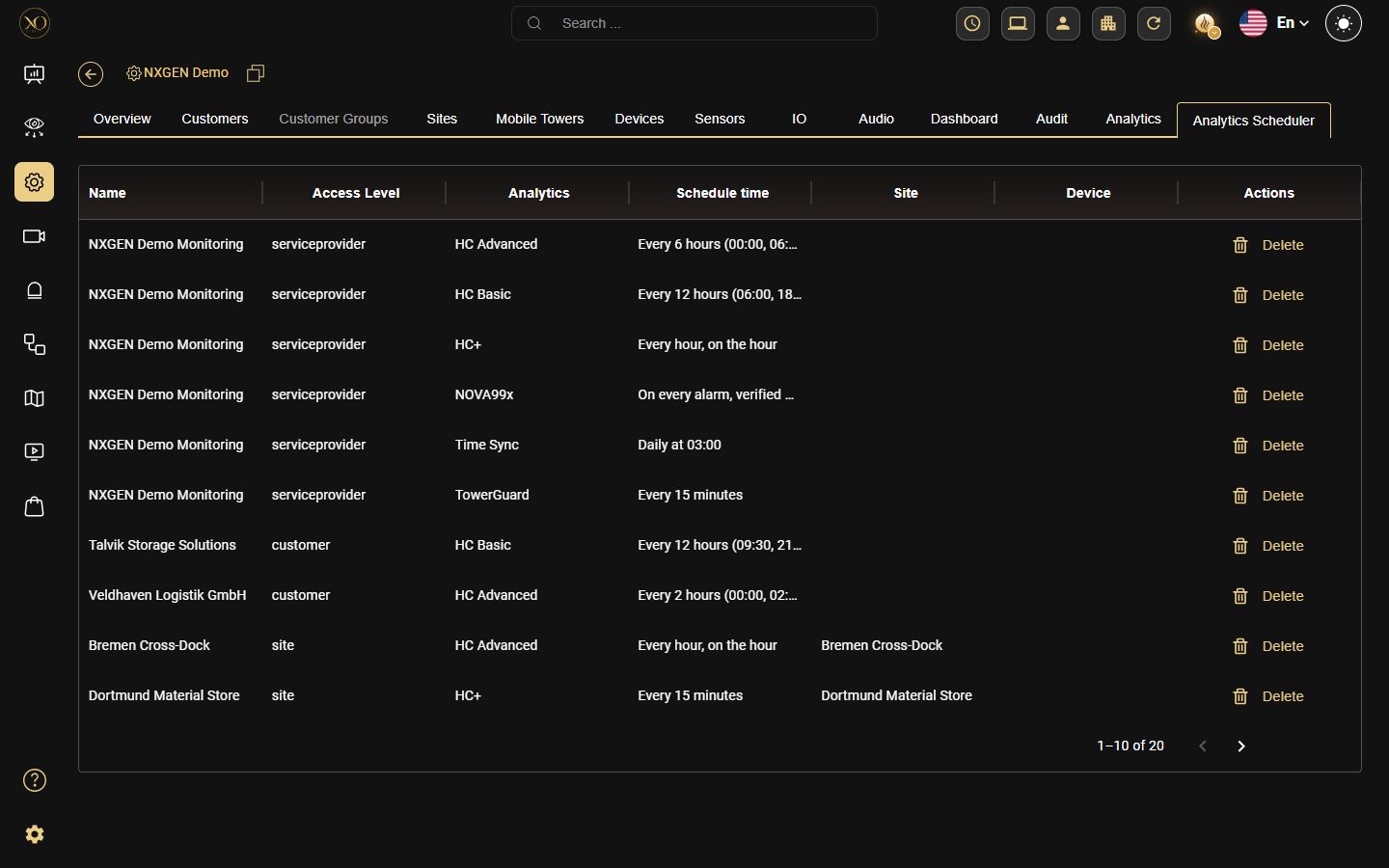
La pestaña Programador de Analítica muestra todos los horarios de analítica configurados en una vista de tabla. Cada fila representa un trabajo de analítica programado y muestra el nombre, nivel de acceso, tipo de analítica, hora del horario, sitio y dispositivo asociado.
La pestaña aparece junto a la pestaña Analítica en la barra de navegación y está sujeta a los mismos permisos.
Por qué es importante
La pestaña Analítica le permite suscribir cámaras a analítica. El Programador de Analítica brinda a los administradores visibilidad completa de cada horario activo en toda la jerarquía en una única tabla, incluido si existen duplicados.
Sin esta vista, los programadores duplicados pueden acumularse silenciosamente — ejecutando el mismo trabajo de analítica varias veces en el mismo nivel, desperdiciando recursos de procesamiento y dificultando la gestión de configuraciones a gran escala.
Cómo funciona
La tabla muestra las siguientes columnas para cada trabajo programado:
- Nombre — la entidad a la que está asignado el programador (cliente, sitio o nombre del dispositivo)
- Nivel de acceso — el nivel jerárquico del programador:
serviceprovider,site, odevice - Analítica — el tipo de analítica programada (p. ej., Health Check+, Port Check)
- Hora del horario — la frecuencia de ejecución del trabajo (p. ej., Diario 12 hrs - 0600, Cada 30 minutos, Cada 5 minutos)
- Sitio — el sitio asociado al programador, si corresponde
- Dispositivo — el dispositivo asociado al programador, si corresponde
- Acciones — acciones disponibles para cada fila
Cada encabezado de columna incluye un menú con tres opciones: Mostrar filtros para filtrar la tabla por esa columna, Ocultar columna para eliminarla de la vista, y Gestionar columnas para controlar qué columnas se muestran.
Capacidades clave
- Visibilidad completa — Ver todos los programadores activos en toda la jerarquía en una tabla.
- Filtrado por nivel de acceso — Cada fila muestra su nivel de acceso (proveedor de servicio, sitio, dispositivo), facilitando la identificación de dónde se creó cada programador.
- Detección de duplicados — La tabla enumera todos los programadores, incluidos los duplicados, lo que permite a los administradores identificar y eliminar trabajos redundantes manualmente.
- Controles de columna — Cada encabezado de columna incluye un menú para mostrar filtros, ocultar la columna o gestionar qué columnas son visibles.
- Eliminar — Elimine cualquier programador directamente desde la tabla. Esto anula la suscripción de las cámaras asociadas a esa analítica.
Casos de uso reales
- Un administrador detecta dos programadores de Comprobación de Puerto ejecutándose en el mismo sitio con intervalos diferentes (Cada 30 minutos y Cada 5 minutos) y elimina el redundante.
- Un proveedor de servicio revisa todos los programadores activos de Health Check+ entre los clientes y elimina las entradas obsoletas de dispositivos desmantelados.
- Un administrador usa la tabla para confirmar qué dispositivos tienen programadores activos antes de realizar cambios masivos en la pestaña Analítica.
Mejores prácticas
- Revise periódicamente la tabla del Programador de Analítica para identificar y eliminar programadores duplicados — la misma analítica ejecutándose varias veces sobre la misma entidad desperdicia recursos de procesamiento.
- Antes de suscribir cámaras a un nuevo schedule en la pestaña Analytics, verifique la tabla Scheduler para confirmar que no exista ya un schedule configurado para ese nivel.
- Utilice la columna Nivel de acceso para comprender en qué nivel se creó un programador — esto ayuda a evitar conflictos entre programadores de nivel pariente y nivel hijo.
- Use Mostrar filtros en las columnas Analítica o Hora del programador para reducir rápidamente las entradas al gestionar gran número de programadores.
Detalles adicionales
- Permisos — La pestaña Programador de Analítica comparte los mismos permisos que la pestaña Analítica. Aparece solo si el permiso Analítica está activado para el usuario en ese nivel. Si los permisos están desactivados, no se muestra ninguna de las dos pestañas.
- Ruta de acceso — Página de Configuración → Nivel de Proveedor de servicio → pestaña Programador de Analítica.
- Visibilidad jerárquica — En el nivel de Proveedor de servicio, la tabla muestra todos los programadores de toda la jerarquía. En niveles inferiores (Cliente, Sitio, Dispositivo), la tabla muestra solo los programadores dentro de ese nivel.
- Eliminar vs anular suscripción — Eliminar un programador desde esta pestaña produce el mismo resultado que anular la suscripción desde la pestaña Analítica.
- Acciones a nivel de fila — La única acción disponible a nivel de fila es Eliminar.
Gracias — sus comentarios llegan al equipo responsable de esta página.